---
title: Monitor & Respond - Device Alert & Incident Queue
description: Microsoft Defender Incident & Alert Queue
---
[Skip to content](https://knowledge.sittadel.com/monitor-respond-device-alert-incident-queue#main-content)
[](https://sittadel.com/)
- [About Sittadel](https://sittadel.com/about/)
- [Capabilities](https://sittadel.com/capabilities/microsoft-office365-azure-security/)
Show submenu for Capabilities
- [Microsoft Security Architecture](https://sittadel.com/capabilities/microsoft-office365-azure-security/)
- [Detection & Response](https://sittadel.com/capabilities/managed-detection-and-response/)
- [Employee Training](https://sittadel.com/capabilities/security-awareness-training/)
- [Security Risk Advisors](https://sittadel.com/capabilities/virtual-information-security-officer/)
- [Resources](https://sittadel.com/resources/)
- [Knowledge Base](https://knowledge.sittadel.com/)
Open main navigation
Close main navigation
- [About Sittadel](https://sittadel.com/about/)
- [Capabilities](https://sittadel.com/capabilities/microsoft-office365-azure-security/)
Show submenu for Capabilities
- [Microsoft Security Architecture](https://sittadel.com/capabilities/microsoft-office365-azure-security/)
- [Detection & Response](https://sittadel.com/capabilities/managed-detection-and-response/)
- [Employee Training](https://sittadel.com/capabilities/security-awareness-training/)
- [Security Risk Advisors](https://sittadel.com/capabilities/virtual-information-security-officer/)
- [Resources](https://sittadel.com/resources/)
- [Knowledge Base](https://knowledge.sittadel.com/)
- [Get Sittadel](https://sittadel.com/start/)
[Get Sittadel](https://sittadel.com/start/)
Find answers to your security questions.
- There are no suggestions because the search field is empty.
1. [Sittadel Knowledge Base](https://knowledge.sittadel.com/?hsLang=en)
2. [SecOps](https://knowledge.sittadel.com/secops?hsLang=en)
3. [Device SOC](https://knowledge.sittadel.com/secops?hsLang=en#device-soc)
# Monitor & Respond - Device Alert & Incident Queue
### **Role Requirements**
Procedure Scope: **Administrators**
Required Group Membership: **Admin.SecurityOperator**
### ****
### **Handbook Reference**
Package: **Device Security**
Domain: **Alert & Incident Queue**
Modifies: **Device Alert Queue**, **Device Incident Queue**
### ****
### **When to Perform this Operation**
Twice a day: **Key times such as 8am and 2pm.**
****
### Analyst Description and Importance
The Defender Device Incident and Alert Queue is used to monitor essential actions and metrics for the organization's device security and health. It serves as a centralized hub where security events related to devices are organized and prioritized for review, enabling analysts to assess and respond to potential security or operational risks. Continuously monitoring the queue ensures that device threats are identified and addressed effectively, while also providing visibility into events that could impact system integrity, compliance, or availability.
**Security Importance:**
> Monitoring and responding to the alert & incident queue ensures that **any potential threats or misconfiguration to device security are resolved**, helping to mitigate the security risk of critical device security functions being compromised due to overlooked alerts or system changes.
**Business Importance:**
> Monitoring and responding to the alert & incident queue ensures that **any potential disruptions caused by device security events are minimized**,helping to mitigate the business risk of critical device functions being compromised due to overlooked alerts or system changes.
### **Covered in this Operation**
**Train**
> - Understanding Alert Entries
> - Understanding Incident Entries
> - Understanding Device Detection Technologies
> - Routine Normal-Urgency Alert Resolution
> - Response to High-Urgency Alerts
**Monitor**
> - Review the Defender Device Security Alert Queue
> - Review the Defender Device Security Incident Queue
**Respond**
> - Respond with Alert Resolved
> - Respond with Incident Resolved
### 
In device alert and incident management, training is essential for developing a solid understanding of what each alert and incident represents, beyond just hitting "resolve." Effective training enables analysts to interpret the significance of alerts, understand how incidents are constructed, and gain insight into the detection technologies behind them.
With this knowledge, analysts can make informed decisions on when to investigate or simply resolve an alert. This isn’t about overcomplicating the process—it’s about ensuring that actions are taken with the right context, improving efficiency and accuracy without unnecessary steps. Proper training means analysts can manage alerts and incidents effectively, addressing issues with confidence and minimizing missed risks.
#### 
#### **Understanding Alert Entries**
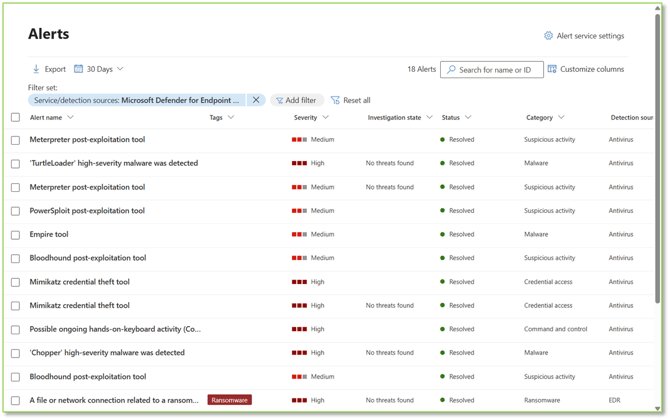
*In Microsoft Defender, understanding alert details is critical for analyzing and responding to device-based threats and functionality impacts. Each alert is composed of multiple sections that convey essential information about the detected issue and its context.*
**Alert Queue Entry**
> - **Alert Name**: The title of the alert that summarizes the nature of the security event, such as “\[Name of Malware\] high-severity malware was detected” or “\[Name of Software\] credential theft tool”. This name gives analysts a quick overview of what type of threat has been identified.
> - **Tags**: Custom labels are added to alerts for easy categorization, filtering, or prioritization. Common tags might include “High Priority,” “Ransomware,” or specific departmental labels. These tags help organize alerts, making it simpler to sort and focus on relevant alerts.
> - **Severity**: The impact level of the alert, such as “Informational”, “Low”, “Medium”, or “High”. This rating helps analysts prioritize their responses based on the potential risk to the organization. Higher severity alerts generally require immediate investigation.
> - **Investigation State**: The current status of the investigation for the alert, such as “Queued”, “No Threats Found”, “Pending Action”, or “Remediated“. This state provides visibility into which alerts have already been addressed or need further attention.
> - **Status**: The current condition of the alert, such as “New”, “In Progress”, or “Resolved”. The status shows the life cycle of the alert, helping analysts identify unresolved alerts that may still pose a threat.
> - **Category**: The type of threat associated with the alert, such as “Suspicious Activity”. The category allows analysts to filter and organize alerts by threat type, making it easier to manage specific device threats more efficiently.
> - **Detection Source**: Identifies the Microsoft Defender component that generated the alert, typically listed as Defender for Endpoint (Antivirus) for device alerts. This field helps analysts understand where the alert originated, guiding them to the right tools and resources for investigation.
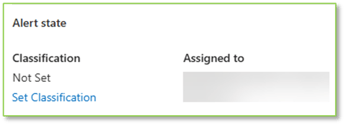
**Alert State** section:
> - **Classification**: Defines the nature of the threat after analysis, categorizing it as "True Positive", "Informational", or "False Positive". Helps categorize alerts for post-remediation activities.
> - **Assigned to**: Specifies the analyst or team which was/is responsible for taking an action on the alert. Ensures accountability and clear ownership on next steps.
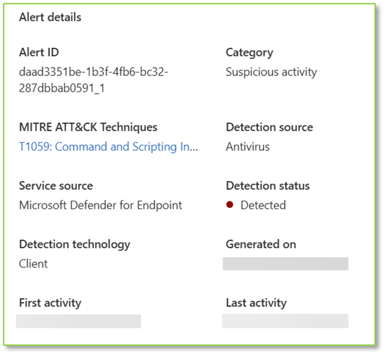
**Alert Details** section:
> - **Alert ID**:Lists the unique ID associated with the generated alert. Assists in uniquely identifying an alert.
> - **Category**: Describes the general type of alert, such as “Suspicious Activity” or “Malware”. Assists in determining the stage or general classification of a potential threat.
> - **MITRE ATT&CK Techniques**:Lists the specific techniques associated with the alert from the MITRE ATT&CK framework. Provides a standardized way to understand and communicate threat behaviors.
> - **Detection Source**: Identifies which aspect of the Defender stack the alert originated from, such as "Microsoft Defender for Endpoint" or “Microsoft Defender XDR”. Indicates the initial detection source.
> - **Service Source**:Specifies the Microsoft 365 service involved, like "Defender for Endpoint". Adds data similar to detection sources on which service the threat is associated with.
> - **Detection Status**:Insight into how a threat was identified and handled, such as “Detected”, “Blocked”, or “Prevented”. These statuses help security teams understand the nature of threats and the effectiveness of their security measures, guiding appropriate responses to maintain organizational security.
> - **Detection Technology**:Describes the method or technology used to detect the threat, such as "Client", or "Heuristic". Offers insight into which detector determined malicious behavior.
> - **Generated On**:Provides the date and time when the alert was created by the system. Important for establishing the timeline of events.
> - **First Activity**: Indicates the earliest timestamp of the suspicious activity related to the alert. Helps determine how long the threat has been present and will always precede the “Generated On” field.
> - **Last Activity**: Indicates the latest timestamp of the suspicious activity related to the alert, either as a result of the threat being remediated or the threat becoming inactive. Helps determine the time between detected activity and remediation/inactivity of the threat by measuring delta between “First Activity” and “Last Activity”.
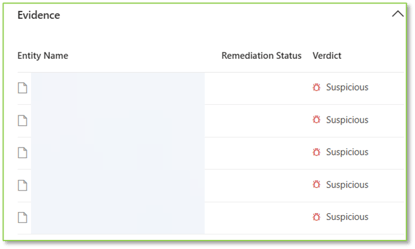
**Evidence** section:
> - **Evidence Entries**:Lists specific data points supporting the alert, such as devices, files, or applications. Serves as the basis for tracking affected types of entities and their status.
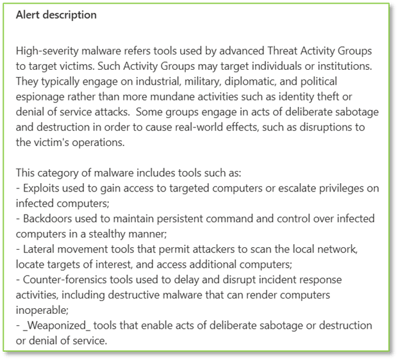
**Alert Description** section:
> - **Alert Description**:Provides a detailed summary of the alert, explaining the nature of the threat and potential impact. Essential for understanding the context and severity.
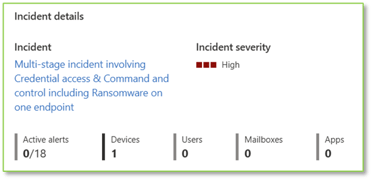
**Incident Details** section:
> - **Incident**:References the incident number linked to the alert for tracking and correlation purposes. Integrates the alert into broader incident management processes.
> - **Incident Severity**: Indicates the level of risk associated with the incident, such as "High", "Medium", or "Low". Guides the urgency and extent of response actions.
> - **Active Alerts**: Shows the number of active alerts associated with the incident. Provides an overview of the incident's scope.
> - **Devices**: Lists any affected devices, if applicable. Important for identifying affected endpoints.
> - **Users**: Identifies users impacted by the threat. Necessary for user-specific remediation and communication.
> - **Mailboxes**: Specifies the mailboxes that were targeted or affected. Key for addressing email-based threats.
> - **Apps**: Lists any applications involved in the incident, if applicable. Helps in assessing the vulnerability of software and services.
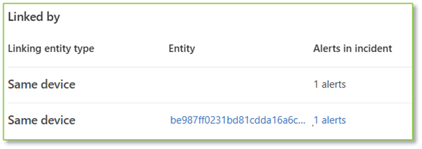
**Linked By** section:
> - **Same Device (May Appear)**:Alerts are associated with the same device.
> - **Same File (May Appear)**:Alerts are associated with the same file.
> - **Same URL (May Appear)**:Alerts are associated with the same URL.
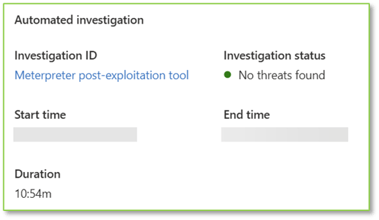
**Automated Investigation (May Appear)** section:
> - **Investigation ID (May Appear)**:Identifies the suspected threat or tool being investigated.
> - **Investigation Status (May Appear)**:Describes the current state of the automated investigation.
> - **Start Time (May Appear)**:Timestamp of when the automated investigation began.
> - **End Time (May Appear)**:Timestamp of when the automated investigation ended.
> - **Duration (May Appear)**:Time taken for the investigation to complete.
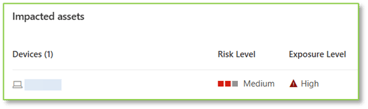
**Impacted Assets** section:
> - **Devices (May Appear)**:Details the specific device entries as they relate to a single alert, with these individual entries that can be found per-alert feeding the overall impact reflected in an incident.
> - **Users (May Appear)**:Details the specific user entries as they relate to a single alert, with these individual entries that can be found per-alert feeding the overall impact reflected in an incident.
> - **Mailboxes (May Appear)**:Details the specific mailbox entries as they relate to a single alert, with these individual entries that can be found per-alert feeding the overall impact reflected in an incident.
> - **Apps (May Appear)**:Details the specific app entries as they relate to a single alert, with these individual entries that can be found per-alert feeding the overall impact reflected in an incident.
> - **Cloud Resources (May Appear)**: Details the specific cloud resource entries as they relate to a single alert, with these individual entries that can be found per-alert feeding the overall impact reflected in an incident.
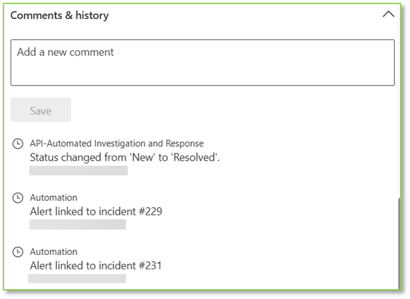
**Comments and History** section:
> - **Comments Section**:Allows analysts to add notes and document actions taken or observations about the alert. Facilitates communication among team members and maintains a record of investigative steps.
> - **History Log**:Displays a timeline of actions related to the alert, such as changes in status and assignments to different analysts. Automation events are also tracked here, like linking the alert to a specific incident.
#### 
#### **Understanding Incident Entries**
*In Microsoft Defender, understanding how alerts inform incidents is critical for analyzing and responding to threats and functionality impacts. Each incident is composed of multiple alerts, with a critical understanding being that an incident will never exist without an alert but instead acts as a vehicle to provide context for one or more alerts.*
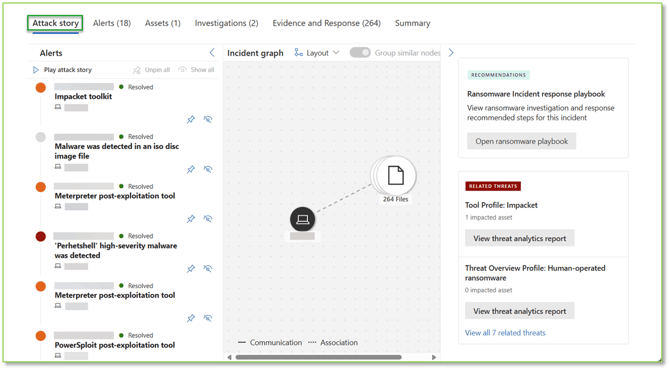
**Attack Story** section:
> - **Alerts**: Lists all alerts that are part of the incident, providing a consolidated view of related security events and showing how individual alerts contribute to the overall incident.
> - **Incident Graph**: A visual representation of the relationships between entities involved in the incident, such as users, devices, files, and network connections. Displays the attack's progression and identifies patterns or correlations among different components.
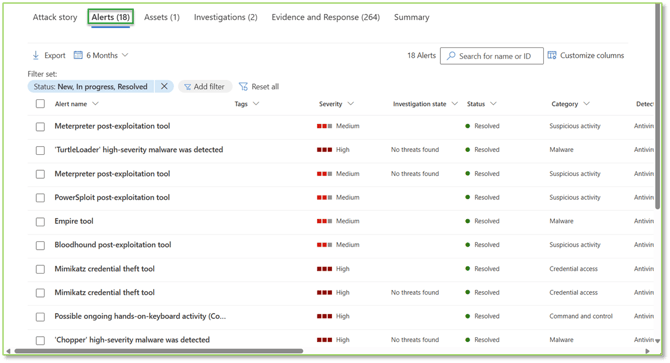
**Alerts** section:
> - **Alert Name**: The title of the alert that summarizes the nature of the security event, such as "\[Malware Name\] heigh-severity malware was detected" or "\[Name of software\] post-exploitation tool." Provides a quick overview of the identified issue.
> - **Tags**: Custom labels added to alerts for easy categorization, filtering, or prioritization. Common tags might include “High Priority,” Ransomware,” or specific departmental labels. These tags help organize alerts, making it simpler to sort and focus on relevant alerts.
> - **Severity**: The impact level of the alert, such as “Informational”, “Low”, “Medium”, or “High”. This rating helps analysts prioritize their responses based on the potential risk to the organization. Higher severity alerts generally require immediate investigation.
> - **Investigation State**: The current status of the investigation for the alert, such as “Queued”, “No Threats Found”, “Pending Action”, or “Remediated“. This state provides visibility into which alerts have already been addressed or need further attention.
> - **Status**: The current condition of the alert, such as “New”, “In Progress”, or “Resolved”. The status shows the life cycle of the alert, helping analysts identify unresolved alerts that may still pose a threat.
> - **Category**: The type of threat associated with the alert, such as “Suspicious Activity”. The category allows analysts to filter and organize alerts by threat type, making it easier to manage specific device threats more efficiently.
> - **Detection Source**: Identifies the Microsoft Defender component that generated the alert, typically listed as Defender for Endpoint (Antivirus) for device alerts and Microsoft Defender for Office 365 for email alerts. This field helps analysts understand where the alert originated, guiding them to the right tools and resources for investigation.
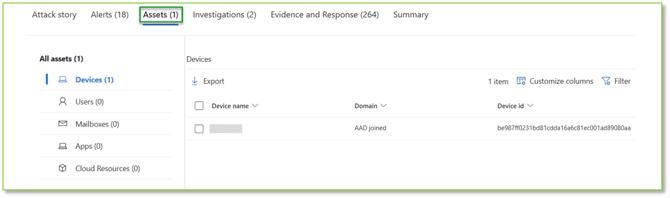
**Assets** section:
> - **Devices**:Details specific devices involved in the incident, including endpoints that may have been compromised or used in the attack. Provides information crucial for isolating affected devices and preventing further spread.
> - **Users**:Information about users associated with the incident, such as those who received phishing emails or whose accounts may have been compromised. Identifies impacted users for the threat.
> - **Mailboxes**:Details of mailboxes involved in the incident, important for email threats where specific mailboxes have been targeted or affected. Identifies impacted mailboxes for the threat.
> - **Apps**:Information about applications involved in the incident, which may include cloud apps or on-premises software that have been exploited or are at risk. Identifies impacted apps for the threat.
> - **Cloud Resources**: Details about cloud resources related to the incident, such as Azure services or other cloud assets that may have been involved. Identifies impacted apps for the threat.
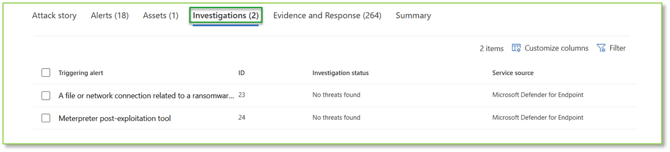
**Investigations** section:
> - **Triggering Alert**:The initial alert that prompted the automated investigation, serving as the starting point for analyzing the incident. Highlights the event that first signaled a potential threat.
> - **ID**:The unique identifier assigned to the investigation, used for tracking, and referencing throughout the incident response process. Helps to uniquely identify the activities related to the investigation.
> - **Investigation Status**:The current state of the automated investigation, such as "No Threats Found. Indicates progress and whether further manual intervention is required.
> - **Service Source**:Specifies the Microsoft 365 service involved, like "Microsoft Defender for Endpoint". Adds data similar to detection sources on which service the threat is associated with.
> - **Detection Source**:Identifies the Microsoft Defender component that generated the alert, typically listed as Defender for Endpoint (Antivirus) for device alerts. This field helps analysts understand where the alert originated, guiding them to the right tools and resources for investigation.
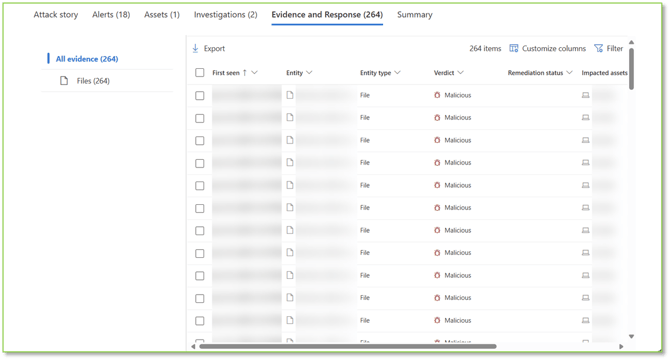
**Evidence and Response** section:
> - **Emails (May Appear)**:Lists emails that are evidence in the investigation, including malicious messages, phishing attempts, or emails with suspicious attachments or links. Outlines individual emails and if they are in scope for remediation actions, should they be approved.
> - **Email Clusters (May Appear)**:Groups of related emails identified as part of the same threat campaign. Outlines the email clusters with their status and if they are in scope for remediation actions, should they be approved.
> - **IP Addresses (May Appear)**: IP addresses involved in the incident, either as sources of malicious activity or as targets. Outlines IP addresses with their status and if they are in scope for remediation actions, should they be approved.
> - **Files (May Appear)**: Files pertinent to the investigation, such as malware samples, infected documents, or unauthorized downloads. Outlines files with their status and if they are in scope for remediation actions, should they be approved.
> - **Processes (May Appear)**: Processes running on devices associated with the incident, which may indicate malware execution or unauthorized activities. Outlines processes with their status and if they are in scope for remediation actions, should they be approved.
> - **URL’s (May Appear)**: Web addresses involved in the incident, such as phishing sites, command-and-control servers, or sites hosting malware. Outlines URLs with their status and if they are in scope for remediation actions, should they be approved.
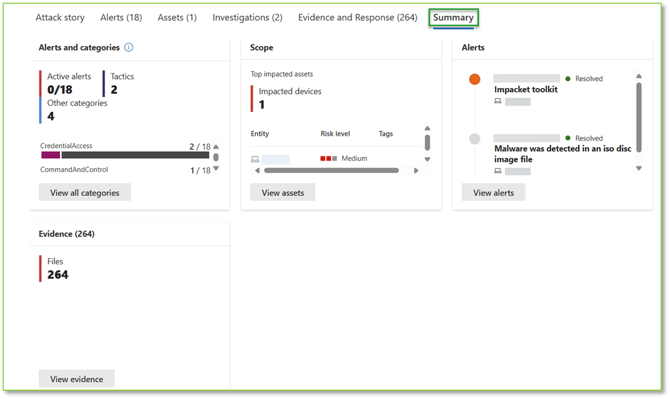
**Summary** section:
> - **Alerts and Categories**:Provides information on the number of unresolved alerts tied to this incident, MITRE ATT&CK framework tactics identified in the alerts, and general classification tags associated with the alerts.
> - **Scope**:Provides the number and type of affected assets tied to the incident.
> - **Alerts**:Provides all associated alerts that are tied to the incident.
> - **Evidence**:Provides the number and type of malicious/suspicious files, processes, IP addresses, URLs, etc.
#### 
#### **Understanding Device Detection Technologies**
*As it pertains to alerts and incidents for devices, the detection technologies are derived from Microsoft Defender Antivirus or Microsoft Defender Advanced Threat Protection.*
| ###### **Detection** | ###### **Technology** | ###### **Investigation Goal** |
| --- | --- | --- |
| ###### **Client** | Detections that were made locally on the endpoint using the Microsoft Defender Antivirus software. | Start by reviewing the alert details, including the process tree, user, and device context, and assess whether the file or activity is malicious, legitimate, or requires further analysis. |
| ###### **Heuristic** | Rule-based detection methods that detect files with traits similar to known malware to identify new or modified threats. | Start by reviewing the alert details, including the process tree, user, and device context, and assess whether the file or activity is malicious, legitimate, or requires further analysis. |
| ###### **Machine Learning** | Utilizes lightweight, specialized models to analyze and make real-time decisions on potentially malicious files, including portable executables, scripts, and documents. | Start by reviewing the alert details to understand what triggered the model’s decision, including file type (portable executable, script, or document), execution context, and associated process activity. |
| ###### **Behavior Monitoring** | Observes process behaviors at runtime to identify and block malicious activities based on predefined rules. | Start by reviewing the process execution chain, command-line arguments, and associated file modifications within the alert details. Identify any potential adversarial techniques that align with known attack patterns and assess whether the detection was triggered due to suspicious behavior, policy violation, or an anomaly in normal system activity. |
| ###### **Memory Scanning** | This engine scans a process's memory to detect hidden malicious behavior. | Start by reviewing the process name, command-line arguments, and parent process while correlating with other alerts to identify in-memory threats like packed malware or shellcode injections |
| ###### **AMSI Integration** | The in-app integration engine uses AMSI to detect and block fileless and in-memory attacks, bypassing code obfuscation. | Start by reviewing the alert details to identify the script or process involved, analyze execution behaviors, check for obfuscation techniques, and correlate with device telemetry and Defender Antivirus history. |
| ###### **Emulation** | Dynamically unpacks and examines malware in a controlled environment to expose hidden or polymorphic threats. | Start by reviewing the alert details, process tree, and any correlated detections to help assess whether the file is needed on the machine, despite not having executed. |
| ###### **Network** | Inspects network activities to detect and prevent malicious communications and data exfiltration attempts. | Start by reviewing whether the flagged activity represents malicious communication or data exfiltration by analyzing the source process, destination IP, and connection details. |
| ###### **Command Line Scanning** | This engine scans process command lines before execution, blocking known malicious code from executing. | Start by reviewing the full command line, process origin, and user context to determine if the command line argument parsed by the program matches it’s intended use case. |
| ###### **Threat Intelligence** | Relies on curated intelligence from Microsoft’s security research teams, third-party feeds, and global threat data sources to identify malicious activity on endpoints. | Start by reviewing the alert details to identify the specific IoC, validate its reputation using other threat intelligence sources, and assess whether the activity is legitimate or suspicious based on user and process context. |
#### 
#### **Remediate High-Urgency Alerts**
*Some alerts and incidents require additional investigation due to their potential impact on business operations or security posture. These high‑urgency alerts often involve activity that must be evaluated within the context of the organization and may rely on the judgment of a technical decision‑maker.*
| ###### **Alert/Incident Name** | ###### **Description** |
| --- | --- |
| ###### **\[Name of Malicious Software\] post-exploitation tool** | A malicious post-exploitation tool was detected on this device. Such tools have been widely used in documented attacks, including those linked to state-sponsored threat actors and ransomware campaigns. The presence of this tool suggests an attacker may be attempting to establish persistence, harvest credentials, or execute additional payloads that could lead to further system compromise. Any detection of post-exploitation activity should be thoroughly investigated to assess the full scope of the intrusion and mitigate potential threats. |
| ###### **\[Name of Malware\] high-severity malware was detected** | High-severity malicious tools refer to software used by threat actors to compromise systems, maintain unauthorized access, and disrupt operations. These tools can be deployed against individuals, organizations, or entire industries, often with objectives beyond simple financial gain. Threat actors may use them for espionage, sabotage, or large-scale operational disruptions, posing significant security risks. This category includes: - Exploitation tools that allow attackers to gain unauthorized access or escalate privileges within a compromised system. - Backdoors that provide persistent, covert access for ongoing control and data exfiltration. - Lateral movement utilities that enable attackers to explore networks, identify high-value targets, and compromise additional systems. - Anti-forensic mechanisms designed to evade detection, delay incident response, or render forensic analysis difficult. - Destructive tools that can degrade or disable critical systems, leading to operational failures or denial-of-service conditions. Any detection of such tools warrants immediate investigation, as they often indicate a targeted attack with potentially severe consequences. |
| ###### **\[Name of Malicious Software\] credential theft tool** | A malicious tool designed for credential theft has been detected on this device. Such tools can extract plaintext passwords, password hashes, smartcard PINs, and authentication tokens, potentially granting an attacker unauthorized access to this or other devices on the network. The presence of this tool indicates a potential compromise and should be thoroughly investigated to determine the extent of unauthorized activity and mitigate further risk. |
| ###### **Possible ongoing hands-on-keyboard activity \[Name of Malware\]** | A malicious attack tool or behavior which could potentially be at the hands of a human operator, rather than scripted automated, was detected on this device. Such tools are often leveraged in a variety of cyberattacks, including those conducted by advanced threat actors and ransomware operators. Attackers can use these tools to establish command-and-control (C2) connections, enabling them to execute further attack stages such as credential theft, privilege escalation, and lateral movement within the network. |
| ###### **A file or network connection related to a ransomware-linked emerging threat activity group detected** | A file or network connection with indicators tied to an emerging ransomware threat group was detected. Unlike well-documented ransomware operations, emerging threats often exhibit less-defined tactics, techniques, and procedures (TTPs), making detection and attribution more challenging. Their methods may be in early stages of deployment, evolving rapidly, or leveraging novel variations of known attack patterns. While common ransomware precursors such as phishing, credential theft, or exploitation of vulnerabilities may be present, the exact execution flow, persistence mechanisms, and lateral movement techniques may not yet be fully mapped. This uncertainty requires a broader investigative approach, analyzing related artifacts, behavioral patterns, and anomalies to assess the potential risk. Prompt investigation is critical to identifying whether these activities represent a developing attack campaign or early-stage ransomware deployment before a more structured attack sequence emerges. |
| ###### **Unwanted software was detected in an iso disc image file** | Potentially harmful software has been detected within an ISO disc image, a file format often used for operating system distributions. While the detected program is not actively running on the system, it may become a threat if the ISO is mounted, extracted, or loaded into a virtual machine. Attackers sometimes distribute tampered or illegitimate ISO files, disguising them as legitimate operating system images or software installers to trick users into executing unwanted or malicious programs. Because the ISO is a self-contained environment, its contents do not directly impact the current machine unless executed. However, detections within archived or disk image files should be investigated, as they may indicate an attempt to distribute unauthorized or modified software. Review the file’s source and verify its authenticity before proceeding, as interacting with an untrusted ISO could introduce security risks, including malware execution or system compromise. |
| ###### **Malware was detected in an iso disc image file** | Malicious tools and unwanted software are applications that can disrupt, compromise, or harm affected devices. Some of these threats can spread across systems, while others operate under remote control, executing actions linked to cyberattacks. This detection indicates that a harmful file has been identified within an archive. While the file has not yet been executed, its presence represents a potential security risk. If security measures are in place and the threat has not been exempted from protection, any attempt to access or activate the malicious content will be blocked. However, further investigation is necessary to assess the origin, intent, and potential impact of the threat. |
| ###### **Anomalous file write to a secure directory by an unprivileged process** | An unprivileged process created or modified a file in a restricted directory under unusual conditions. This type of activity is often associated with attempts to escalate privileges, which could indicate the presence of a malicious tool designed to gain unauthorized control over the system. Such threats warrant thorough investigation to assess if this type of activity is to be expected from the program, or if the program is attempting malicious behavior. |
| ###### **\[Name of Malware\] ransomware was detected** | Malicious tools often employ encryption techniques to restrict access to files, using keys known only to the attacker. This prevents users from opening or recovering their data without external intervention. In many cases, these threats leave behind indicators such as ransom notes or other messages instructing the victim on how to regain access, often in exchange for payment. To maximize impact, such tools may specifically target files in common storage locations or with specific extensions associated with user data. Additionally, they may rename encrypted files to create a uniform pattern. Detection of such activity may suggest that an attack was disrupted before full execution, but a thorough investigation is necessary to determine whether any compromise has occurred and to ensure no residual threats remain on the system. |
If you encounter an alert/incident name that is not currently listed in the table above, a good baseline to follow for severity would be:
| ###### **Alert/Incident severity** | ###### **Description** |
| --- | --- |
| ###### **High (Red)** | High-severity threats, often linked to Advanced Persistent Threats (APTs), pose an immediate and critical risk due to their stealthy, persistent nature and potential for system-wide compromise, data exfiltration, and operational disruption. These incidents require urgent containment, investigation, and mitigation to prevent escalation, as they often involve privileged access abuse, lateral movement, zero-day exploits, or large-scale ransomware attacks. |
| ###### **Medium (Orange)** | A Medium-severity threat indicates rare but potentially suspicious activity, such as anomalous registry changes, execution of suspicious files, or behaviors resembling attack stages. While not an immediate crisis, it warrants timely investigation to rule out early-stage intrusion, persistence mechanisms, or unauthorized actions. If correlated with other unusual activities, escalation may be necessary to prevent compromise. |
| ###### **Low (Yellow)** | A Low severity threat involves common malware or hack-tools that are not targeted or advanced, posing minimal immediate risk but potentially indicating security gaps. While not urgent, these threats should be monitored and remediated to prevent escalation or exploitation. |
| ###### **Informational (Grey)** | Informational incidents are low-severity events that do not pose an immediate threat but are worth tracking for visibility, trend analysis, or forensic reference. While they typically require no action, monitoring them can help identify emerging patterns, support investigations, and ensure compliance. |
#### 
#### **Resolve Normal-Urgency Alerts**
*Not all alerts or incidents require investigation or escalation. Normal‑urgency alerts reflect expected operational behavior and are typically resolved through acknowledgement. When applicable, minimal action may be taken by the security team without the need for further analysis or investigation.*
| ###### **Alert/Incident Name** | ###### **Description** |
| --- | --- |
| ###### **Administrative action submitted by an Administrator** | An administrator initiated a response action, such as isolating an endpoint or restricting application execution. In resolving this, confirm that the action was performed in accordance with your how the response should go for these types of threats. Certain actions can have adverse effects on the machine such as data loss, or if an action such as isolate continues without being reversed, prevent a user from doing their work. |
| ###### **Connection to a custom network indicator** | Indicates that an endpoint attempted to connect to a URL, domain, or IP address that has been flagged by your custom network indicators and was subsequently blocked. When resolving this, examine the connection attempt to confirm that it was indeed targeting a resource known to be malicious or unapproved. As these entries are typically set to not expire, there may be instances where an unwanted connection was unwanted at one point in time but should now be re-allowed. |
| ###### **Automated investigation started manually** | Notifies that an automated investigation process was manually initiated by an administrator. As you resolve this alert, verify that the manual initiation was intentional and appropriate given the circumstances. In most cases, the automated SOAR capabilities provided by Defender XDR will automatically initiate the investigation needed, with the primary exception to this being threat hinting activities leading to a further investigation. |
| ###### **\[Name of Malware\] was prevented** | Confirms that Defender successfully blocked an attempt to execute or propagate a known piece of malware. In resolving this alert, understand that no additional actions should be necessary as it pertains to the file names and processes referenced within the entry. |
### 
In the context of device alert and incident management, monitoring includes 2 steps: **alert monitoring and incident monitoring**.
This fact is due to the nature of the Defender alert and incident management system, wherein, alerts are the drivers for incidents. An alert contains the specifics about a point in time threat or activity, and incidents are simply one or more alerts combined. This means a single alert has a high likelihood of generating an incident, and when an alert is remediated or resolved, the incident mirrors this status. The resulting workflow works best when working through alerts first, and then incidents, allowing the resolution of alerts to automatically solve incidents without further intervention in most cases.
#### 
#### **Review the Defender Device Security Alert Queue**
*Reviewing unresolved alerts is first, as it drives resolution in both alerts and incidents.*
#### 
#### **Review the Defender Device Security Incident Queue**
*Reviewing unresolved incidents is next, as checking no further actions are required after solving for alerts in recommended.*
### 
In the context of device alert and incident management, a response action is **always warranted**.
This fact is due to the nature of the device alert and incident management system, wherein, automation may automatically resolve some alerts and by extension the incidents they are a part of automatically. However, alerts and incidents which are not covered under this automation will be marked as **“In Progress” or “New”**, and subsequently require acknowledgement and resolution at a minimum, or additional actions in certain cases.
#### 
#### **Respond with Alert Resolved**
The primary goal of alert queue management is concerned with the acknowledgement and resolution of alerts in the queue. Further investigation for specific alerts does not need to be performed to successfully resolve an alert, however, there are cases where those additional actions are warranted. See the “Recognize when to Investigate and Resolve” section for more information on these cases.
#### 
#### **Respond with Incident Resolved**
The primary goal of incident queue management is concerned with the acknowledgement and resolution of incidents in the queue. Further investigation and response for specific incidents does not need to be performed to successfully resolve an incident, however, there are cases where those additional actions are warranted. See the “Recognize when to Investigate and Resolve” section for more information on these cases.
### Need Assistance?
Reach out to your Customer Success Manager to discuss how a Sittadel cybersecurity analyst can assist in managing these tasks for you. New to our services? [Inquire](https://sittadel.com/start/) about arranging a consultation to explore optimizing your Azure environment for painless management.
- [UserOps](https://knowledge.sittadel.com/userops?hsLang=en#main-content)
- [Access & Permissions](https://knowledge.sittadel.com/userops?hsLang=en#access-permissions)
- [Account](https://knowledge.sittadel.com/userops?hsLang=en#account)
- [Devices](https://knowledge.sittadel.com/userops?hsLang=en#devices)
- [Document Sharing](https://knowledge.sittadel.com/userops?hsLang=en#document-sharing)
- [Email](https://knowledge.sittadel.com/userops?hsLang=en#email)
- [Requests](https://knowledge.sittadel.com/userops?hsLang=en#requests)
- [Troubleshoot](https://knowledge.sittadel.com/userops?hsLang=en#troubleshoot)
- [TechOps](https://knowledge.sittadel.com/techops?hsLang=en#main-content)
- [Tenant Foundations](https://knowledge.sittadel.com/techops?hsLang=en#tenant-foundations)
- [Collaboration Security](https://knowledge.sittadel.com/techops?hsLang=en#collaboration-security)
- [Email Security](https://knowledge.sittadel.com/techops?hsLang=en#email-security)
- [Device Security](https://knowledge.sittadel.com/techops?hsLang=en#device-security)
- [Identity Security](https://knowledge.sittadel.com/techops?hsLang=en#identity-security)
- [SecOps](https://knowledge.sittadel.com/secops?hsLang=en#main-content)
- [Email SOC](https://knowledge.sittadel.com/secops?hsLang=en#email-soc)
- [Identity SOC](https://knowledge.sittadel.com/secops?hsLang=en#identity-soc)
- [Tenant SOC](https://knowledge.sittadel.com/secops?hsLang=en#tenant-soc)
- [Device SOC](https://knowledge.sittadel.com/secops?hsLang=en#device-soc)
- [Deploy Intune](https://knowledge.sittadel.com/deploy-intune?hsLang=en)
- [Deploy MDE](https://knowledge.sittadel.com/deploy-mde?hsLang=en#main-content)
- [Overview](https://knowledge.sittadel.com/deploy-mde?hsLang=en#overview)
- [Intune Deployment](https://knowledge.sittadel.com/deploy-mde?hsLang=en#intune-deployment)
- [Hands-On Deployment](https://knowledge.sittadel.com/deploy-mde?hsLang=en#hands-on-deployment)
- [Azure Arc Deployment](https://knowledge.sittadel.com/deploy-mde?hsLang=en#azure-arc-deployment)
- [RMM Tool Deployment](https://knowledge.sittadel.com/deploy-mde?hsLang=en#rmm-tool-deployment)
- [MECM/SCCM Deployment](https://knowledge.sittadel.com/deploy-mde?hsLang=en#mecm-sccm-deployment)
- [GPO Deployment](https://knowledge.sittadel.com/deploy-mde?hsLang=en#gpo-deployment)
- [Deploy Services](https://knowledge.sittadel.com/deploy-services?hsLang=en#main-content)
- [Cloud Enclave](https://knowledge.sittadel.com/deploy-services?hsLang=en#cloud-enclave)
- [Azure Portals](https://knowledge.sittadel.com/azure-portals?hsLang=en#main-content)
- [Entra ID](https://knowledge.sittadel.com/azure-portals?hsLang=en#entra-id)
- [Intune](https://knowledge.sittadel.com/azure-portals?hsLang=en#intune)
- [Defender](https://knowledge.sittadel.com/azure-portals?hsLang=en#defender)
- [Purview](https://knowledge.sittadel.com/azure-portals?hsLang=en#purview)
- [SharePoint Admin Center](https://knowledge.sittadel.com/azure-portals?hsLang=en#sharepoint-admin-center)
- [Teams Admin Center](https://knowledge.sittadel.com/azure-portals?hsLang=en#teams-admin-center)
- [Admin Center](https://knowledge.sittadel.com/azure-portals?hsLang=en#admin-center)
- [Exchange Admin Center](https://knowledge.sittadel.com/azure-portals?hsLang=en#exchange-admin-center)
[](https://Sittadel.com)
Security for Humans.
Copyright © 2026, Sittadel